Cart
Cart


How to Connect Your MasterLock Lockbox and InstaShow+: A Step-by-Step Guide
Discover how to seamlessly complete your MasterLock lockbox setup and pair it with InstaShow in just a few steps. Ideal for self-tours and traditional tours alike!

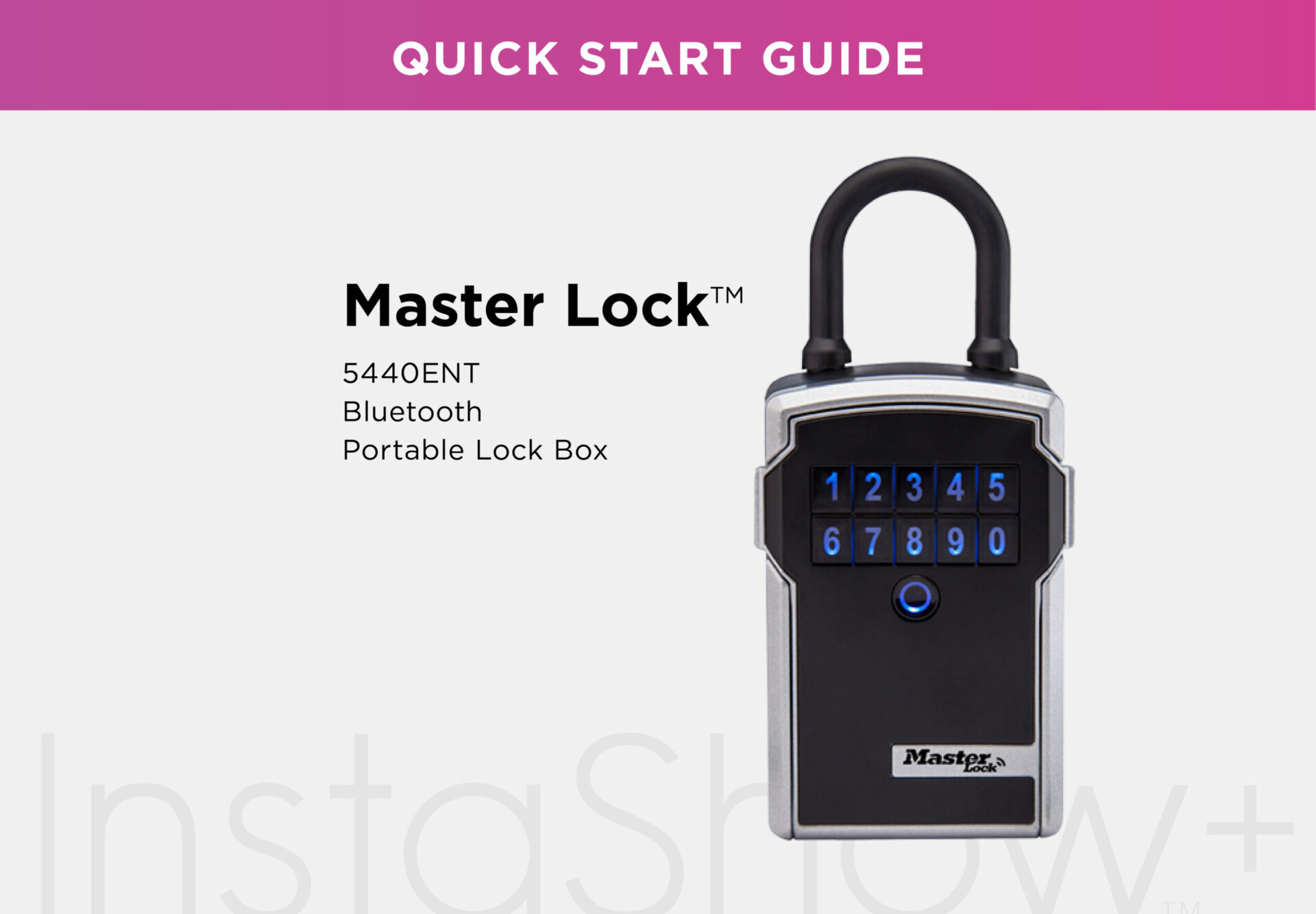
How to Connect Your MasterLock Lockbox and InstaShow+ : A Step-by-Step Guide
Welcome to the InstaShow+ MasterLock Lockbox Tutorial! In this guide, we’ll walk you through the process of connecting your MasterLock lockbox to the InstaShow+ app. Let’s get started!
In this tutorial we will be going through the steps of connecting your Masterlock lockbox and your InstaShow+ app.
Step 1: Install the InstaShow+ Sticker
If you’re offering self-tours, place the InstaShow+ sticker (included in your kit) on your front door. For traditional tours, skip this step and proceed to Step 2.
Step 2: Download the InstaShow+ App
Visit your app store, search for InstaShow+, and download the app to your mobile phone. Once installed, you’re ready to move forward.
Step 3: Register and Verify Your Account
Open the InstaShow+ app and follow the instructions to register your account and complete the verification process. This step ensures secure usage of your lockbox.
Step 4: Access the Settings Menu
Within the InstaShow+ app, go to the Settings menu located in the main navigation.
Step 5: Add a New Lock
Under the System section in Settings, select Locks and tap on the Add New Lock button.
Step 6: Choose Your Lock Type
Select Master Lock as the lock manufacturer and choose Lock Box as the lock type.
Step 7: Locate the QR Code
Find the device ID QR code on the front of your MasterLock lockbox. This code is essential for pairing.
Step 8: Assign a Nickname
Give your lockbox a unique nickname for easy identification (e.g., “Backyard Lockbox”).
Step 9: Scan the QR Code
Using the InstaShow+ app, scan the QR code on your lockbox. Ensure the QR code is clear and legible for successful scanning.
Step 10: Finalize the Addition
Tap the Add Lock button to complete the setup process. Your new lockbox is now added to your inventory!
Pro Tip: If you’re setting up multiple lockboxes, repeat Steps 5–10 for each additional lockbox.
Testing Your Lockbox
Once your lockbox is connected, it’s time to test its functionality.
Step 11: Install the Batteries
Insert the included batteries into your lockbox. Refer to the owner’s manual for detailed instructions if needed.
Step 12: Enable Bluetooth
Make sure your phone’s Bluetooth is turned on and stay within 5 feet of the lockbox.
Step 13: Test the Lock
Wrapping Up
Setting up your MasterLock lockbox with InstaShow+ is simple and efficient. With everything configured, you can confidently provide secure and seamless access to your clients. Happy hosting!
Stay up to date
Get the latest articles delivered to your inbox





Maximize your day in real estate with InstaShow+
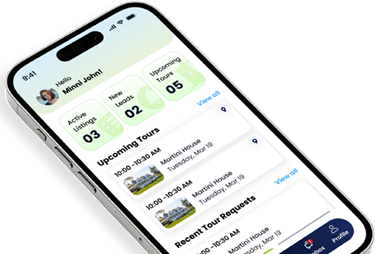
Download the InstaShow+ App
Find everything you need for buying, selling and renting property in the InstaShow+ App!