Cart
Cart


How to Add or Remove Team Members in InstaShow+
Learn how to invite, assign, or remove team members in InstaShow+—right from your app or desktop. Full control over access, step by step.

Step 1: Go to Settings
Log into your InstaShow+ account and tap the Settings icon.
Step 2: Open the Team Tab
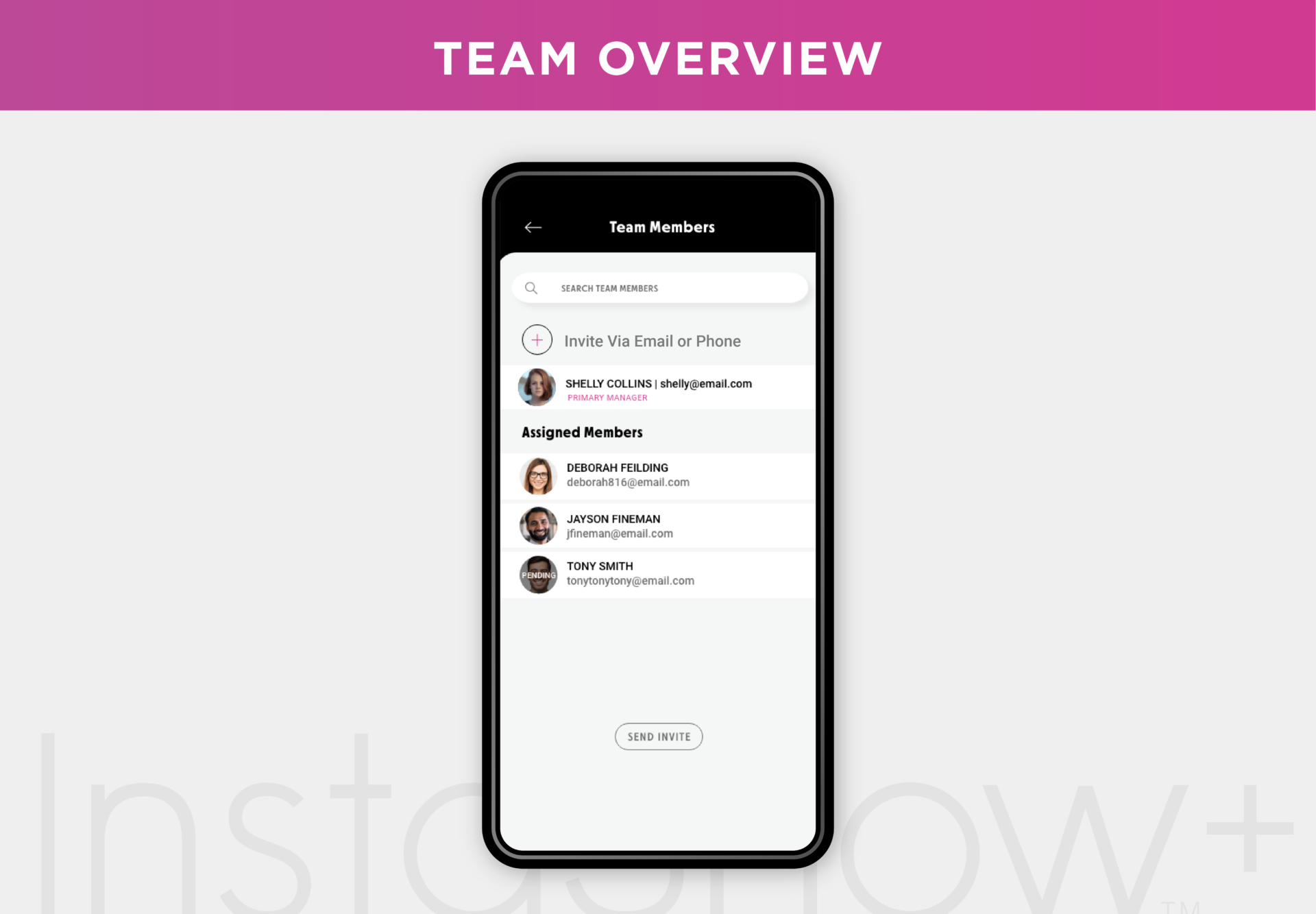
From the Settings menu, tap Team.
Step 3: Invite a General Team Member
To invite someone without assigning them to a specific property, enter their email or phone number and tap Send Invite.
Step 4: What Happens Next
The invited user will receive a notification in their inbox with your request.
Step 5: Invite to a Specific Property
To add someone to help manage a property, go to the Properties screen and select the listing.
Step 6: Add a Property Team Member
Tap the plus sign under Property Team, enter their email or phone number, then tap Send Invite.
Step 7: Remove Someone from a Property
To remove a user from a property team, return to the same screen, tap the small X next to their name, and confirm.
Step 8: Remove Someone from Your Team (Desktop Only)
To fully remove a user from your overall team, log into InstaShow+ on desktop and open the Team tab.
Step 9: Final Removal
Check the box next to the user’s name, open the Actions menu, and select Delete. Confirm—and they’ll be removed.
You’re Always in Control
With InstaShow+, managing who has access is simple and flexible—whether you’re on mobile or desktop. Keep your team up to date and your properties secure.
Stay up to date
Get the latest articles delivered to your inbox




Maximize your day in real estate with InstaShow+
Download the InstaShow+ App
Find everything you need for buying, selling and renting property in the InstaShow+ App!